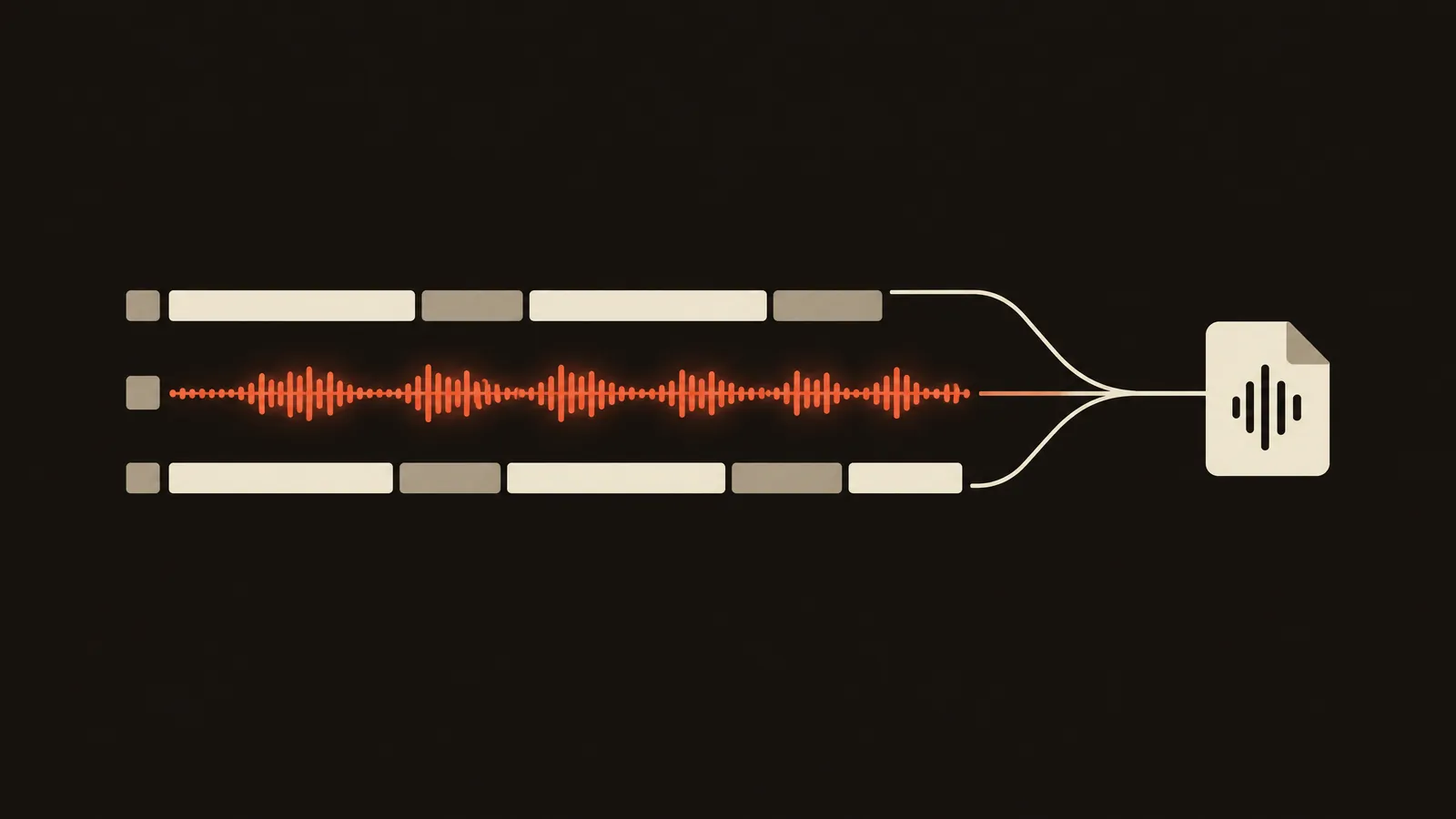
Every wedding I edit starts the same way. All the cameras and audio from the ceremony and speeches get synced onto one timeline, and then that timeline gets handed to the next step. For years the next step was me, scrubbing through an hour of speeches with headphones on. Now it's Folio, which needs two things from that timeline: an XML of the sequence and a clean dialogue track.
This guide covers how to export both from DaVinci Resolve, Premiere Pro and Final Cut Pro, plus the handful of mistakes that cause problems. I edit fully in Resolve now, so I'll start there.
Before you export: get the timeline right
How you sync is up to you. Use your editor's built-in sync, a dedicated syncing tool, or do it by hand. What matters is the end result.
One timeline, everything on it. Put the ceremony, the speeches and anything else with dialogue you might use on a single timeline. Use as many camera and audio tracks as you like. There's no limit, and more angles give you more to cut with later.
Flatten anything nested. Multicam clips, compound clips and nested timelines hide the real source files inside a container. Break them apart into plain clips before you export, so every clip on the timeline points straight at a file on your drive. In Final Cut this matters even more: multicam and compound clips don't raise an error there, their angles are just left out.
Leave titles and generators off. Text, adjustment layers and generated clips have no source file behind them. Keep them off this timeline. You'll add them in the real edit anyway.
Avoid renaming clips on the timeline. Folio follows each clip's file, so it's usually fine, but a renamed clip can occasionally fail to match its media.
Keep one frame rate. Mixed frame rates usually work out, but a timeline in one rate avoids surprises.
DaVinci Resolve
The timeline XML
- In the Media Pool, select your synced timeline.
- Go to File > Export > Timeline.
- Choose FCP 7 XML V5 Files (*.xml) as the format.
- Save it with a simple name, for example
Sarah_James.xml.
Export only the synced timeline, not the whole project. The XML should be small. The limit is 3.5MB, so if it's bigger than that you've probably exported more than you need.
The dialogue audio
This is where most of the quality comes from. My method is simple: mute every audio track except the clearest one. Usually that's a lav or a recorder on the celebrant or the speaker's mic. Muted tracks don't render, so you get one clean voice and no room noise, music or camera audio bleeding in.
- Mute every track except your clearest dialogue track.
- Go to the Deliver page and choose the Audio Only preset.
- Render the entire timeline, not an in-to-out range.
- Give the file the same base name as the XML, for example
Sarah_James.wav.
WAV is fine. You don't need to compress it first.
Rendering the whole timeline from the start matters. Folio lines the words up with the clips by their position on the timeline, counting from the first clip, so render the whole timeline and make sure there's no empty space before the first clip.
If you're on Resolve Studio, the Folio panel does both exports for you. It renders the audio, uploads both files and brings the finished timeline back into Resolve. Before it sends anything, it warns you about any muted audio tracks. If you muted them on purpose to keep only your clearest dialogue, choose Send anyway.
Premiere Pro
The sequence XML
- Select your synced sequence in the Project panel.
- Go to File > Export > Final Cut Pro XML.
- Save it, for example
Sarah_James.xml.
The dialogue audio
- Mute every audio track except your clearest dialogue track.
- Go to File > Export > Media, choose an audio format such as MP3 or WAV, and export the whole sequence.
- Use the same base name as the XML, for example
Sarah_James.mp3.
The Folio panel for Premiere also exports and uploads both files for you, and imports the finished cut into your project.
Final Cut Pro
The project XML
- Select your synced project in the browser.
- Go to File > Export XML.
- Save it. Final Cut writes an
.fcpxmlfile or an.fcpxmldbundle. Either works; if you have the bundle, zipping it first (right-click > Compress) is the safest way to upload it.
The dialogue audio
- Turn off every audio role or clip except your clearest dialogue.
- Go to File > Share > Export File and set the format to Audio Only.
- Export the whole project with the same base name as the XML.
Which track gives the cleanest transcript
The cleaner the voice, the better everything downstream works: the transcript, who's speaking, and where each line starts and ends. In order of preference:
- A lav on the speaker, or a recorder plugged into the venue's mic.
- The desk or PA feed, if the venue gives you one.
- A shotgun mic close to the speaker.
- Camera audio, only if there's nothing better.
Pick one. Mixing several tracks together usually adds echo and room noise rather than clarity.
Common problems and fixes
"Folio could not find the source file for some clips." Something on the timeline isn't linked straight to a media file. It's usually an unflattened multicam, a compound or nested clip, a title or generator, or a renamed clip. Find it, flatten or remove it, and export again.
"Folio found no speech in the audio." The wrong track was left unmuted, or everything was muted. Check that your clearest dialogue track is the one that's on, and render again.
"Filename mismatch: … must share the same base name." Rename one so they match, for example Sarah_James.xml and Sarah_James.wav.
The sequence file is over the 3.5MB limit. You've exported more than the synced timeline. Export just that one timeline.
Next steps
With the XML and the clean dialogue track, Folio can read the whole day, find the lines worth using and build a first cut that opens straight back in your editor. If you want to see what it does with one of your weddings, start a free trial.